OpenAI's Agent Builder MCP Server Integration
How to integrate Agent Builder with Aluvia's MCP server to create AI Agents.
Requirements:
- Aluvia account (new users get free credit for testing, and then you can pay as you go)
- OpenAI Account with a verified organization
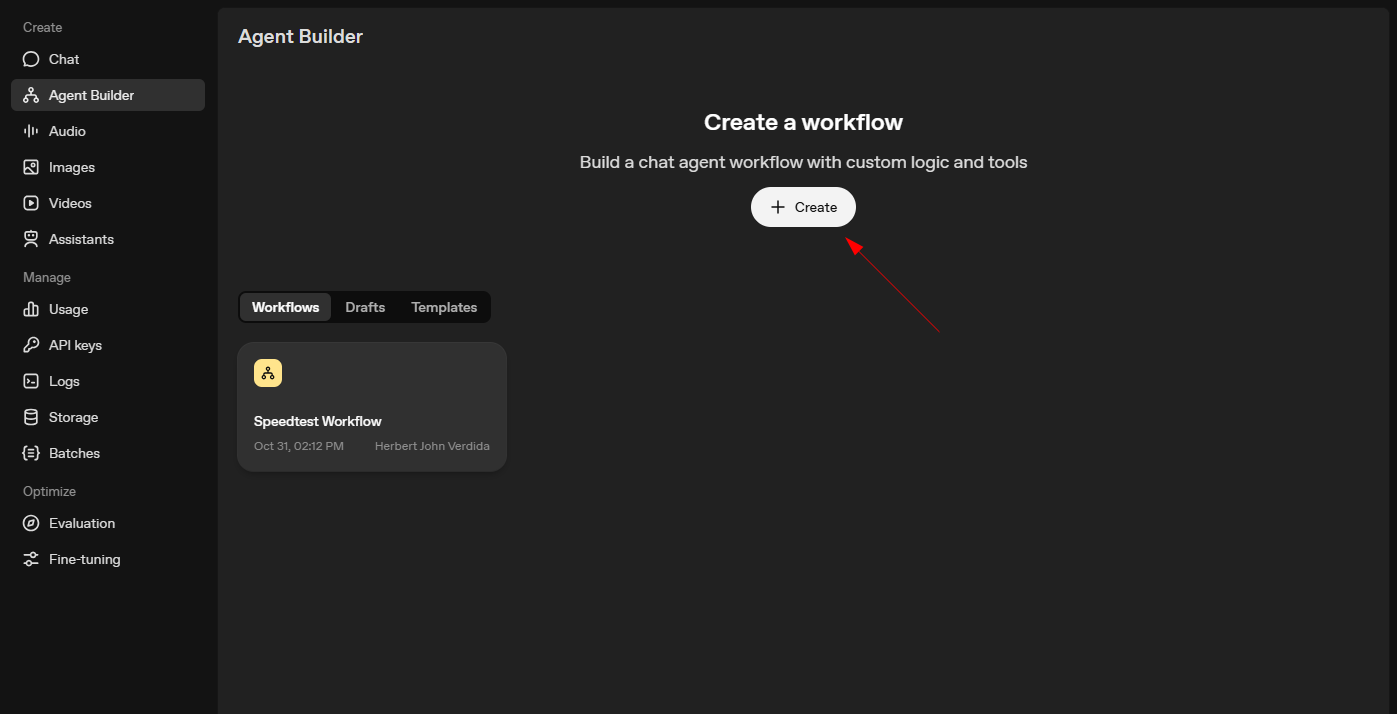
Create a new flow
Go to Agent Builder and create a new flow
Click the "Create Agent" or "New Flow" button to begin setting up your AI agent workflow.
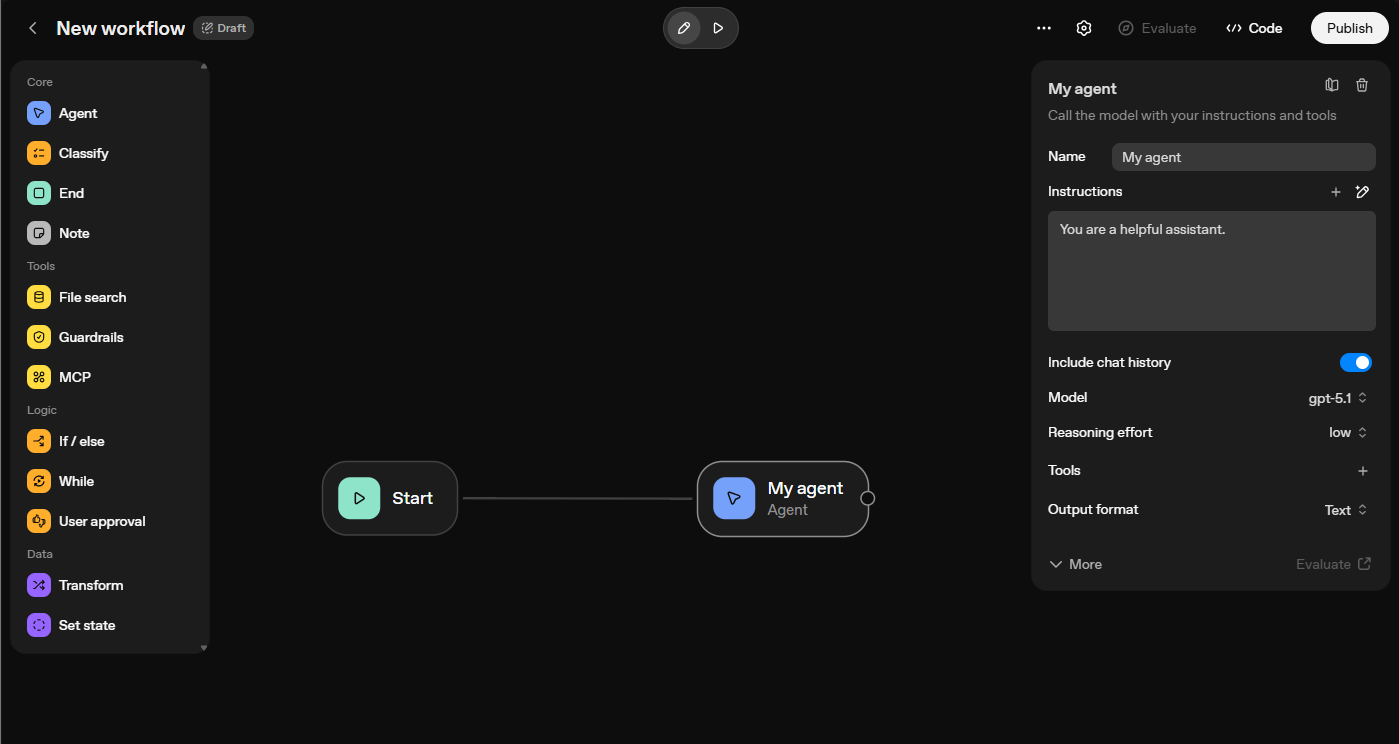
Click on the agent node
After creating your flow, click on the agent node in the workflow canvas.
The agent configuration panel will appear on the left side of the screen, allowing you to customize your agent's settings and capabilities.
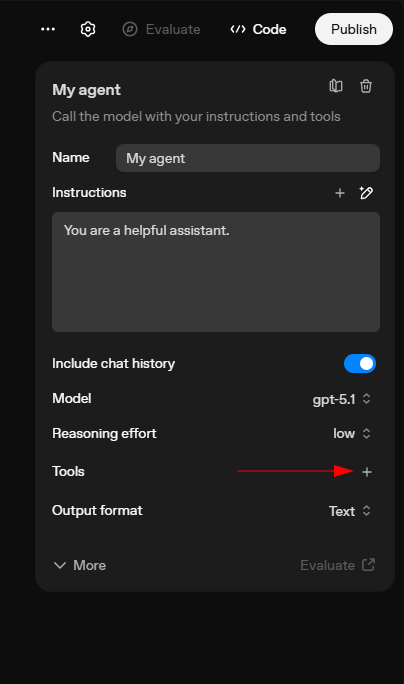
Click on Tools to add the MCP
In the agent configuration panel, locate and click on the "Tools" section to add MCP server integration.
This will open the tools configuration interface where you can connect external services like Aluvia's MCP server.
Choose MCP and add the Aluvia MCP server
Copy and paste the following URL into the URL section:
https://mcp.aluvia.io
On the Authentication section, select "Access token / API key" and enter your Aluvia Token as the value.
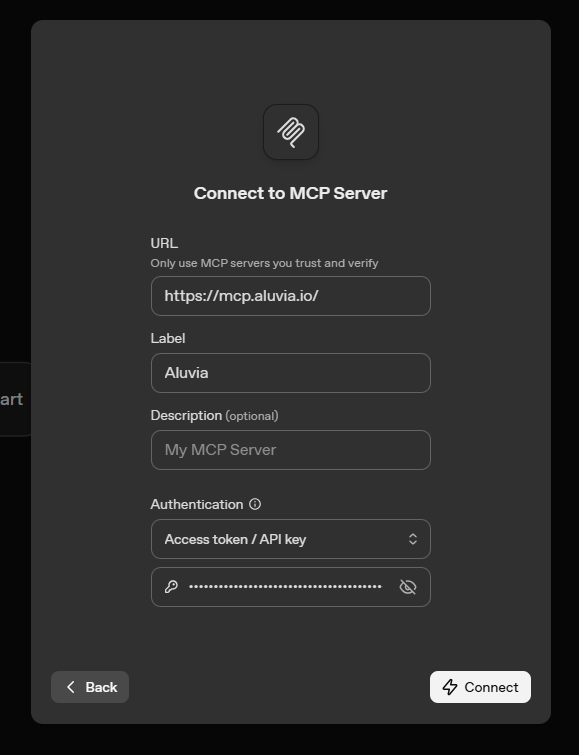
You can find your Aluvia Token in your Aluvia Dashboard under the Credentials page.
Then click the Connect button.
Choose your preferred tools and add them
Here you can choose the relevant Aluvia tools you want to expose to the agent:
- list_proxy_credentials – List all connectivity credentials in your account
- create_proxy_credential – Create new connectivity credentials with optional parameters
- update_proxy_credential – Update settings for an existing connectivity credential
- delete_proxy_credential – Delete a connectivity credential (use with caution)
- test_proxy_credential – Test connectivity and performance for a specific credential
- get_proxy_credential_usage – Get usage statistics for monitoring a connectivity credential
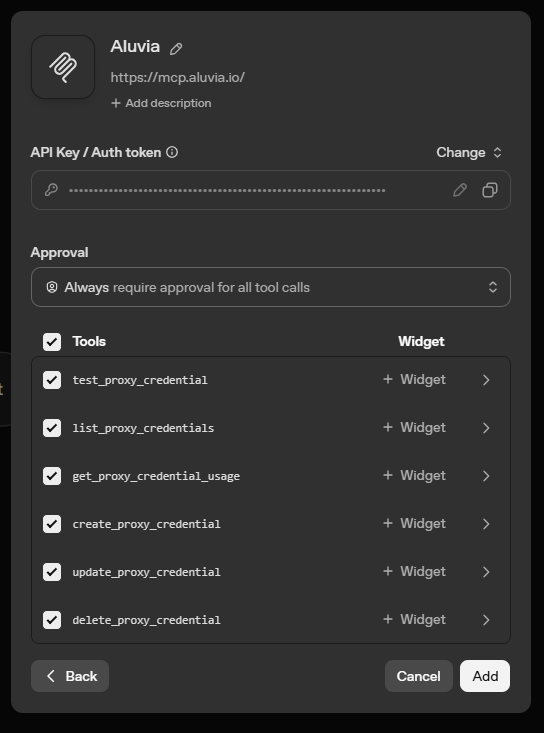
You can add all of them by clicking the Add button, or select specific tools based on your agent's requirements.
Configure your agent with a name and instructions
Give your agent a name and provide clear instructions. Here's an example configuration:
Agent Name: Aluvia Credentials Manager
Instructions:
You are a specialized AI agent that helps users manage their Aluvia mobile connectivity credentials.

You can:
- List existing connectivity credentials
- Create new connectivity credentials with sticky sessions
- Test connectivity and performance
- Monitor usage statistics
- Update credentials settings
- Safely delete unused credentials

Always confirm destructive actions (like deleting credentials) before proceeding.
Provide clear explanations of proxy status and performance metrics.
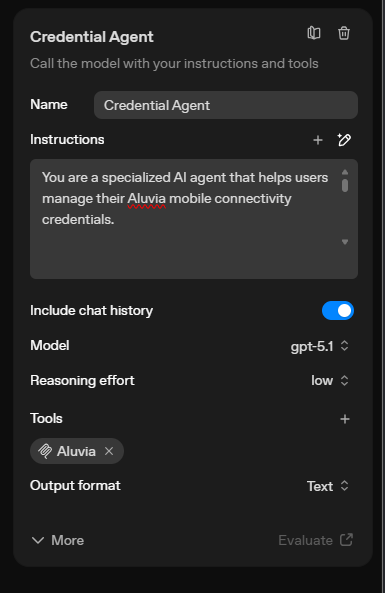
Choose the appropriate reasoning effort level and click the Preview button to test your agent.
Test your agent
Ask your agent questions about connectivity management and test its capabilities:
Example prompts:
- "List all my current connectivity credentials"
- "Create 3 new connectivity credentials with sticky sessions enabled"
- "Test the connectivity of credential 'username123'"
- "Show me usage statistics for the last 7 days"
- "What's the current status of my connectivity infrastructure?"
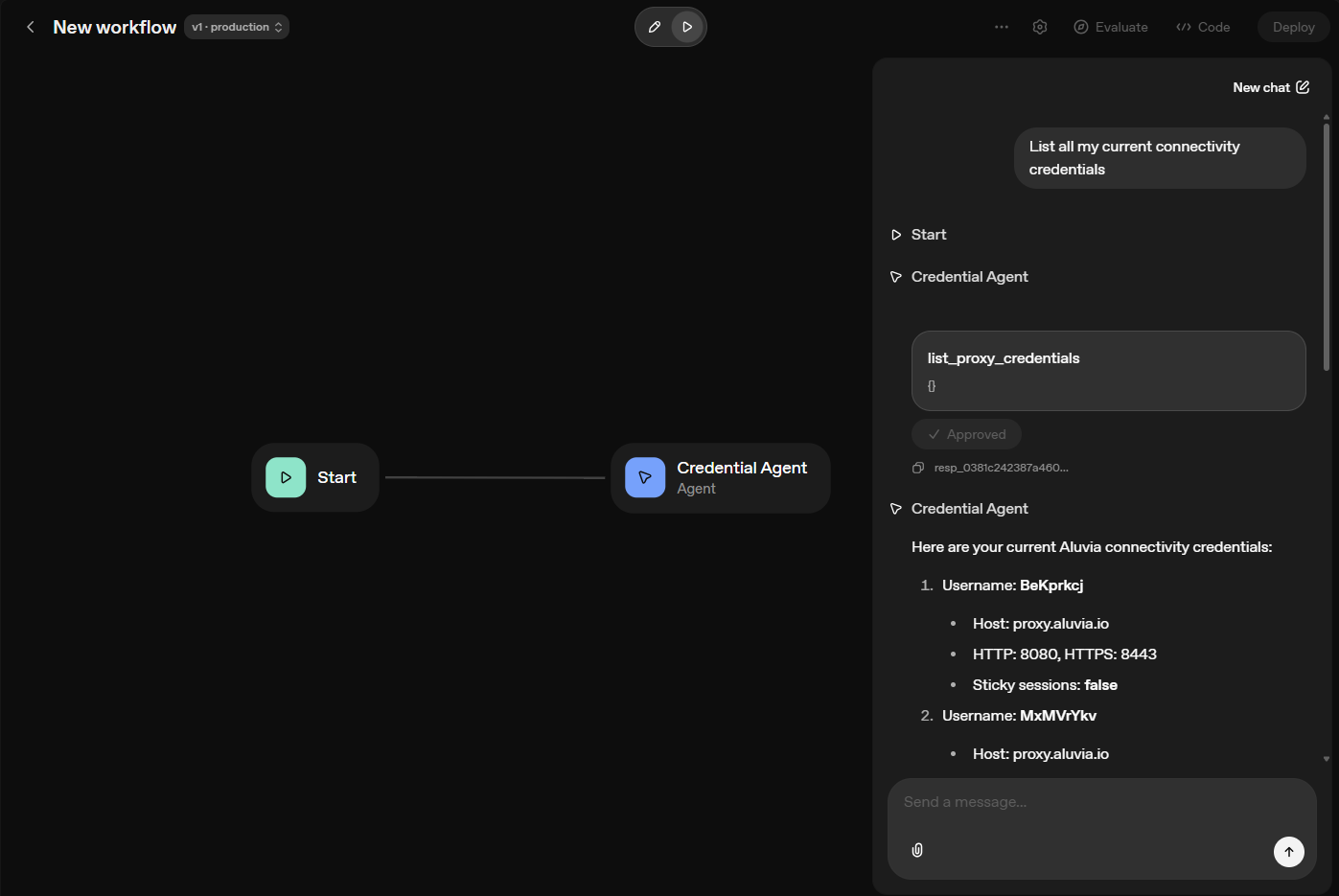
Your agent will use Aluvia's MCP tools to provide real-time information about your mobile connectivity network.